Keep the picture, lose the words
Remove Text From Image
Erase text, labels and dates from any photo and let AI rebuild the background instead of painting over it. Compare three rebuilt versions.
1 free HD edit · No signup or credit card to try
The editor detects the text in your photo first, so removal targets exactly what OCR found — no manual masking.
See a real removal ↓No image handy? Try one of these:
Upload only images you have permission to edit. Read our Terms and Privacy Policy.
Actual output
Real removals on complicated backgrounds.
These saved examples use pre-generated results. Viewing them does not use your free edit or credits. Every after image is a real AI rebuild — no mockups.
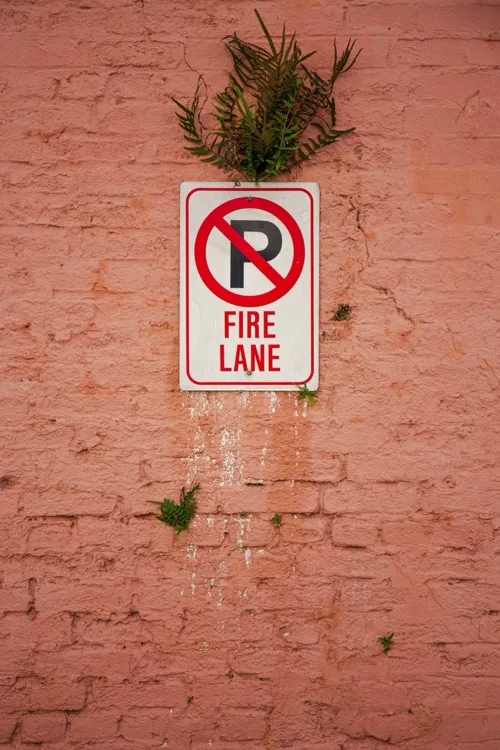
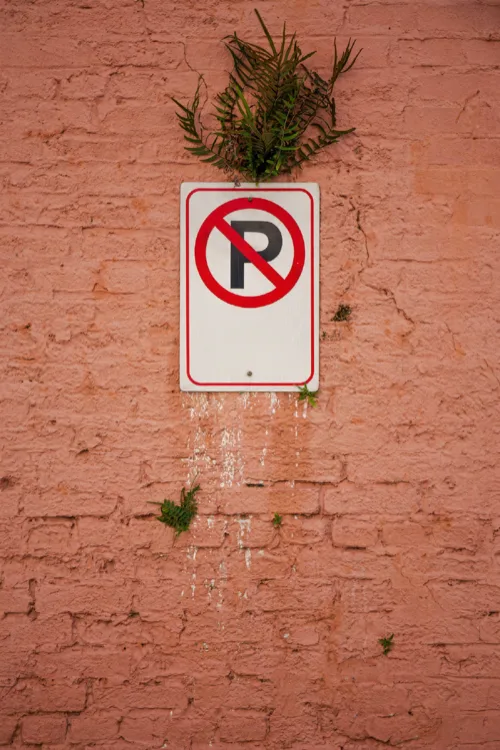
A parking sign on cracked, textured brickwork
Removed: FIRE LANEErase the No Parking FIRE LANE sign from a pink brick wall. The rebuild has to bring back cracked paint, white streaks, and the fern that spills over the sign — no blurry patch left behind.
Original photo by @jarrodreed / Unsplash. Unsplash License. AI-edited results are shown for comparison.
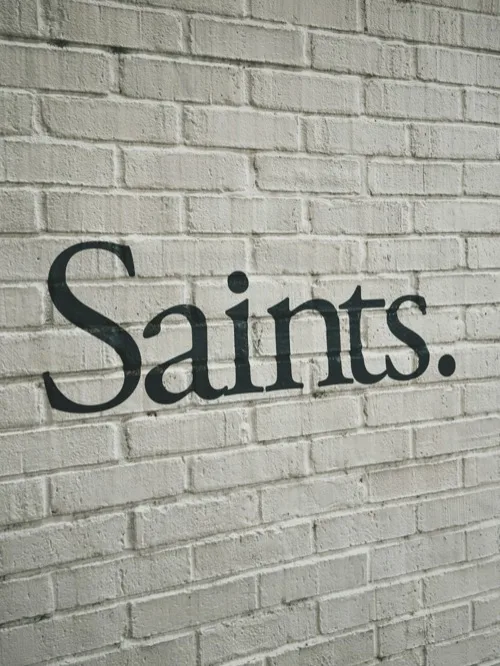
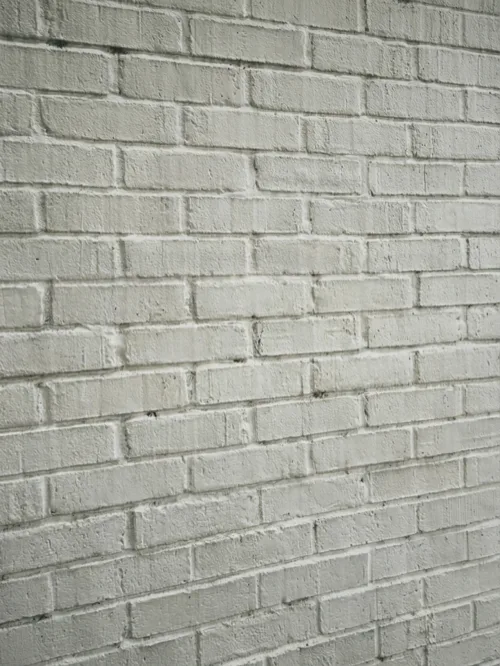
Large lettering painted straight onto brick
Removed: Saints.Erase the painted shop name from a white brick wall. Every letter sits over a different brick, so the rebuild restores mortar lines, chipped paint, and shading across the whole name — no blurry patch left behind.
Original photo by @jontyson / Unsplash. Unsplash License. AI-edited results are shown for comparison.
Built for clean erasure
What a text remover takes out and leaves in.
A good way to remove text from a photo keeps two promises at once: the words disappear, and the surface behind them stays believable. This tool works as a dedicated text remover — use it when you want to erase text from image areas like price tags, date stamps, printed captions, or a banner someone left across the view.
- Sign lettering and banner text you photographed, not planned for
- Date stamps and small labels printed over the scenery
- Captions and overlays that hide what you actually took the picture of
It is not a recovery tool — a blurred or illegible word cannot be brought back, only the area around it can be rebuilt. And when the goal is to keep the picture but change what the sign says, that is a replacement job, not removal.
No blurry patch
How the background gets rebuilt.
The editor reads the image first and marks every detected text area. When you submit, AI rebuilds each marked area to match the colors, texture, shadows, and perspective that surround it — so a printed label on a brick wall disappears back into brick, and a stamp on a cloudy sky dissolves into sky. Nothing is smudged over; the surface is redrawn with the surrounding image as the reference.
Because this is a generative rebuild, you get three versions to compare. Texture-heavy spots vary most between them; flat surfaces are usually near-identical across all three. Pick the version where the rebuilt area blends, then download it.
From marked text to a clean copy
How to Erase Text from an Image
Upload your image
Choose a JPG, PNG, or WebP. The editor automatically detects the text and lists every line it found.
Clear the lines you want gone
Clearing a line removes that text, and AI rebuilds the background behind it. Use Clear all text to wipe every detected line at once, or clear just the ones you care about.
Compare and download
Generate three rebuilt versions, then check each against the original. Download your chosen PNG up to 1280px.
Set the right expectations
Where Reconstruction Works Well and Where It Shows
Where it shines
Printed lettering on a readable surface: signs on flat walls, stamps on open sky, tags on clean packaging. The more texture the rebuild can copy from, the less visible the edit.
Keeping the removal focused helps too — one line or one label is easier to judge across three versions than twenty spread across the frame.
Where it can struggle
Handwritten scripts, painted letters, and tiles or foliage that wrap tightly around every stroke are harder rebuilds. Viewers look for seams first where texture is busiest.
Very large text blocks leave larger areas to invent, so the three versions may disagree more. Compare the whole image before choosing.
AI removes text and redraws what is behind it. It does not keep a hidden copy of the original pixels, so treat the rebuilt areas as a convincing recreation.
Questions about erasing text
Will it leave a blurry patch behind?
That is the main thing the edit tries to avoid. AI removes the text and rebuilds the area behind it so the surface keeps its color, texture, and lighting. Complex textures can still vary between versions — inspect all three before downloading.
What kinds of text does it remove?
Printed lettering works best: sign text, date stamps, price tags, labels, and captions. To remove words from an image like a watermark overlay or hand-painted lettering, expect it to be a harder rebuild — compare the three versions closely.
Will the rest of the image change?
This is a generative edit, not a pixel-level erase. Areas right next to removed text can shift slightly while the background is rebuilt. Use the before-and-after comparison to check the whole image, not only the spot where the words were.
Can it handle handwritten or stylized lettering?
It can attempt it, but handwriting and stylized titles demand more reconstruction than clean printed text, so results are less predictable. If the letters sit over a busy texture, make sure to check all three versions during comparison.
What files does it support?
Upload PNG, JPG, or WebP up to 10 MB. Your chosen version downloads as a PNG up to 1280px. Uploads and results are automatically deleted 24 hours after generation completes.