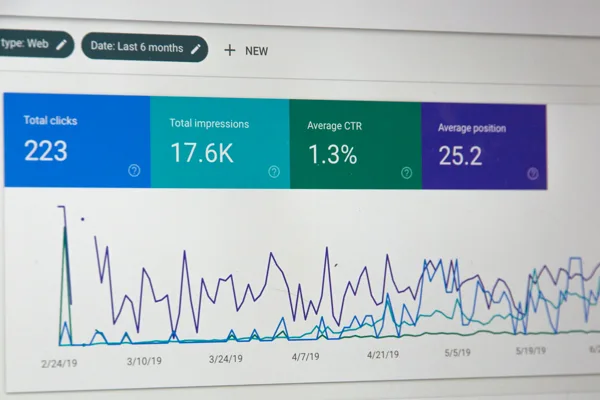
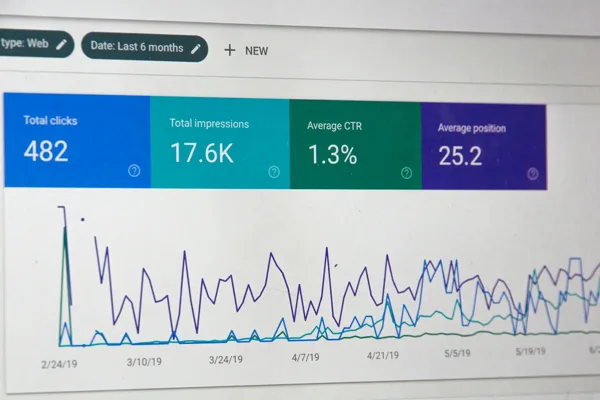
223 → 482. Inspect the numerals, the card color, and the chart around it.
Explore a real edit
Compare a Screenshot Before and After the Edit
This saved example uses pre-generated results. Viewing it does not use your free edit or credits.
↔BeforeAfter
Drag to compare the Total clicks card and the surrounding dashboard.
Actual output. No mockups. The Total clicks card updates from 223 to 482 while Total impressions, Average CTR, the chips, and the chart stay as photographed.
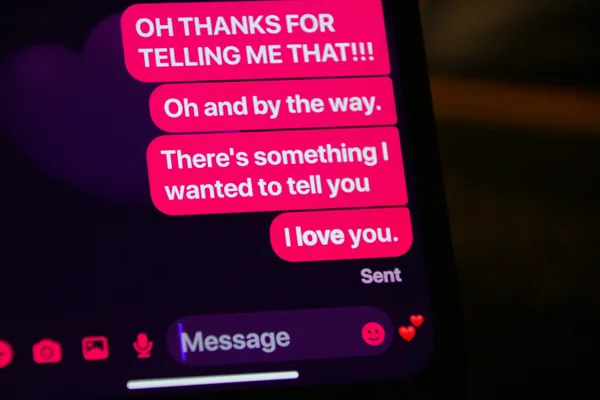
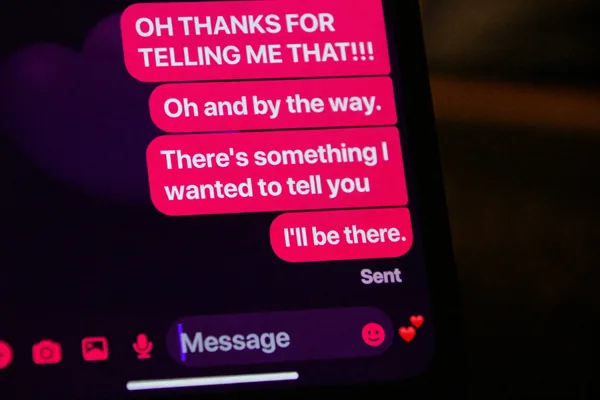
Change the last message in a photographed chat thread. Shared screenshots are how teams prove what was said — fixing one bubble beats re-staging the whole conversation.
The final bubble now reads I'll be there. while the earlier bubbles and the Sent status stay as photographed.
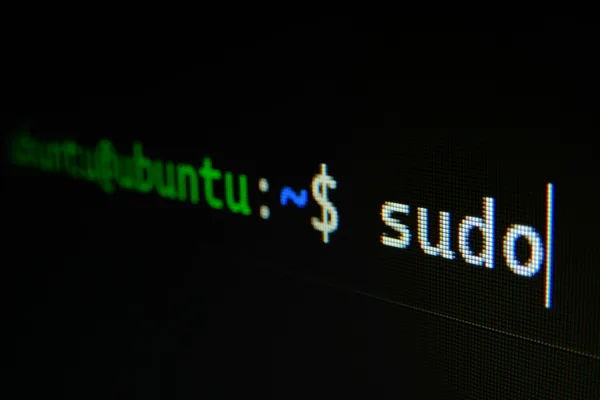
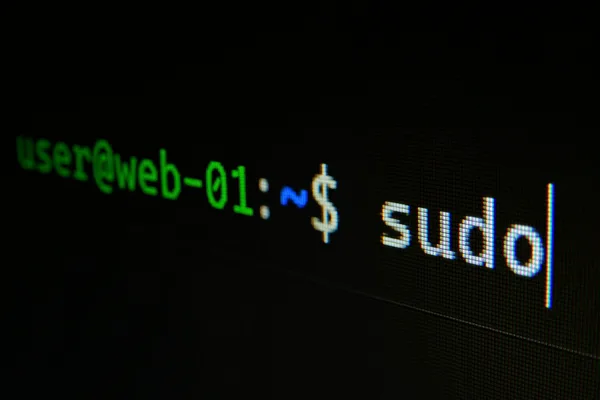
Mask the account and machine name in a photographed terminal prompt. Tutorial and runbook screenshots routinely leak usernames and hostnames that need replacing before publishing.
The prompt identity changes from ubuntu@ubuntu to user@web-01 while the tilde, dollar sign, and the sudo command stay readable.
Actual output. No mockups.
Where this saves hours
Screenshots that go stale the moment they are taken.
SaaS demos and pitch decks
Product demo screenshots froze the quarter they were taken in. Update the figures on the dashboard so the demo matches the story you are telling today — without rebuilding the staging environment for every walkthrough.
Chat and ticket records
Support teams and case studies reuse real conversations as evidence. Change one message, an order number, or a status line so the screenshot fits the write-up instead of re-staging the whole thread.
Tutorial and runbook images
Screenshots for guides often carry usernames, hostnames, and internal IDs nobody should publish. Replace them with neutral placeholders right before the article ships, right in the image.
From your screenshot to a new version
How to Edit Text in a Screenshot
Upload your screenshot
Choose a JPG, PNG, or WebP. The editor automatically reads the text and shows the detected words for you to change.
Replace the words
Edit the text you want to change. Numbers, names, and short lines work best; AI uses the original image as the reference for the lettering and layout.
Compare and download
Generate three versions, then compare each against your original. Check the changed text and the surrounding UI before downloading your chosen result.
Set the right expectations
What AI Can Preserve and What May Change
Where to start
One short piece of text per edit: a figure, a message, a prompt identity. The original image supplies the reference for the letter shapes, color, and placement, so a focused change is easy to judge.
Clean UI text on a flat surface edits most predictably; the examples above show that photographed screens work too.
Where it can struggle
Tiny labels, dense paragraphs, and lettering over busy graphics are harder to redraw. A result may shift spacing or touch nearby detail, and screens with strong glow or motion blur leave less to copy from.
These examples use Latin lettering and digits. They do not establish accuracy for every script, font, or interface.
This is a visual redraw, not a font-file match or a promise that untouched areas remain pixel-identical.
A closer comparison
How to get the cleanest edit
Change one thing at a time
Every example above edits one short piece of text. Keeping the first edit focused makes it easy to see exactly how the screen responds.
Keep replacements similar in length
A figure for a figure, a name for a name. Swapping a short label for a sentence forces AI to invent spacing and layout that the original cannot anchor.
Check the whole frame
Verify the changed text, then look around it: the card color, the neighboring bubbles, the rest of the prompt line. Choose the output that holds up across the whole screenshot rather than assuming Version 1 is the best.
Questions about editing screenshots
Does it work on photos of a screen, not just clean exports?
Yes. The saved examples on this page are photos of monitors and phones with real perspective and glow. Clean, flat screenshot exports are the easiest input; photographed screens add angle and light, so compare the three versions before choosing.
Can it mask sensitive details before I share a screenshot?
It can replace names, email addresses, account IDs, and figures with placeholders or different values. This is a visual redraw, not a pixel-level erase — inspect the whole image afterward to confirm nothing identifying was left untouched elsewhere in the frame.
Will the edit keep the original UI style?
The edit asks AI to follow the original lettering, size, weight, color, and alignment as a visual reference. Results usually look consistent with the screen, but an exact match is not guaranteed — compare the three versions against your original.
What kinds of text are hardest?
Tiny interface labels, dense paragraphs, and text sitting over busy graphics are harder to redraw. A replacement much longer than the original may also compress or wrap. Start with short, specific changes so you can judge each result.
What files does it support?
Upload PNG, JPG, or WebP up to 10 MB. Your chosen version downloads as a PNG up to 1280px. Uploads and results are automatically deleted 24 hours after generation completes.
Your screenshot, updated in place
Change the words. Keep the screen.
Upload, replace the text, then compare three versions. 1 free HD edit.