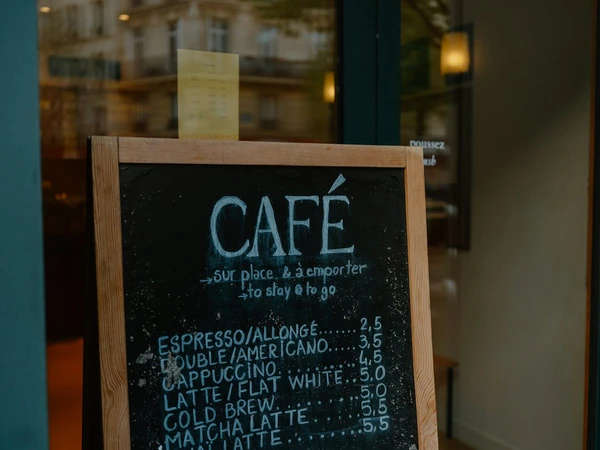
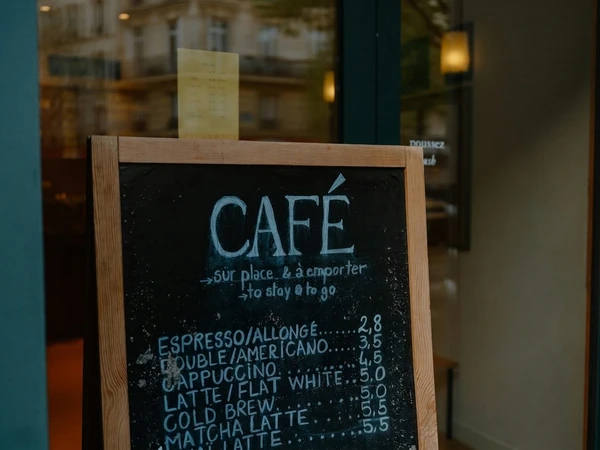
Change the espresso price on a photographed cafe chalkboard, keeping the decimal comma. Look at the handwritten strokes, chalk residue, and nearby menu items.
The espresso price changes from 2,5 to 2,8, keeping the handwritten look and decimal comma.
Actual output. No mockups.
From your image to a new version
How to Edit Text in an Image with the Same Font
Upload your image
Choose a JPG, PNG, or WebP. The editor automatically reads the text and shows the detected words for you to change.
Replace the words
Edit the text you want to change. Start with a replacement of similar length; AI uses the original image as the reference for the lettering and layout.
Compare and download
Generate three versions, then compare each against your original. Check the lettering and surrounding background before downloading your chosen result.
Set the right expectations
What AI Can Preserve and What May Change
Where to start
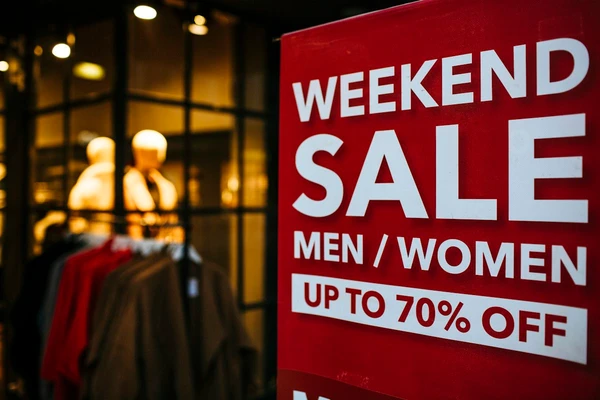
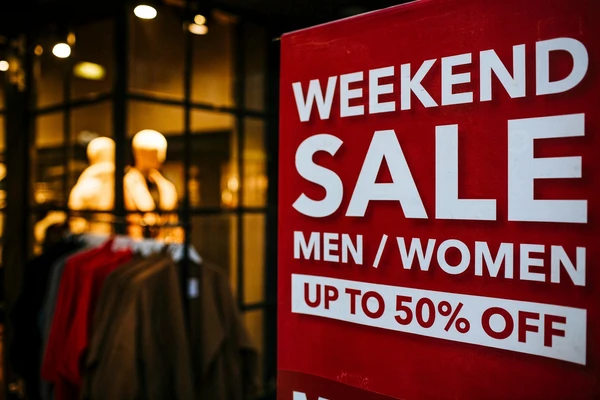
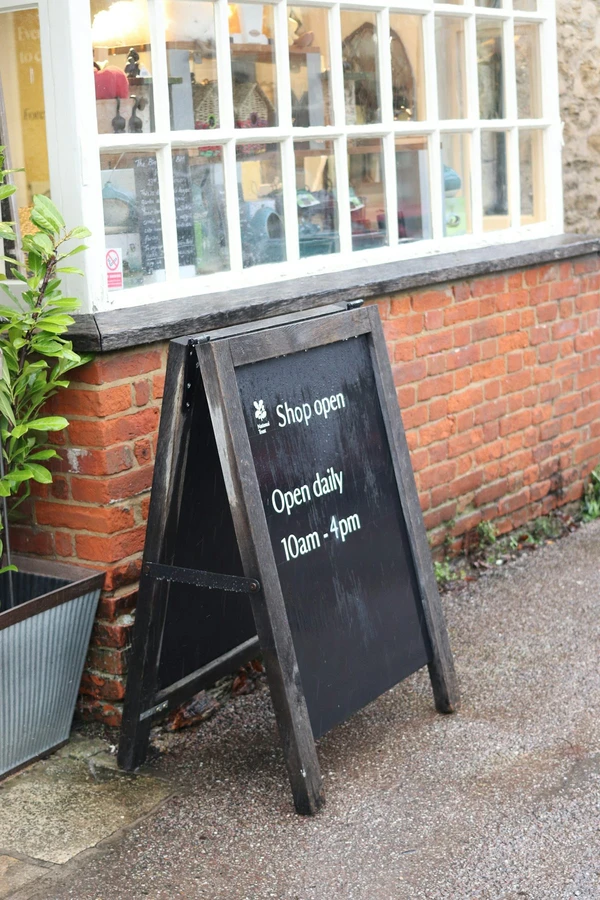
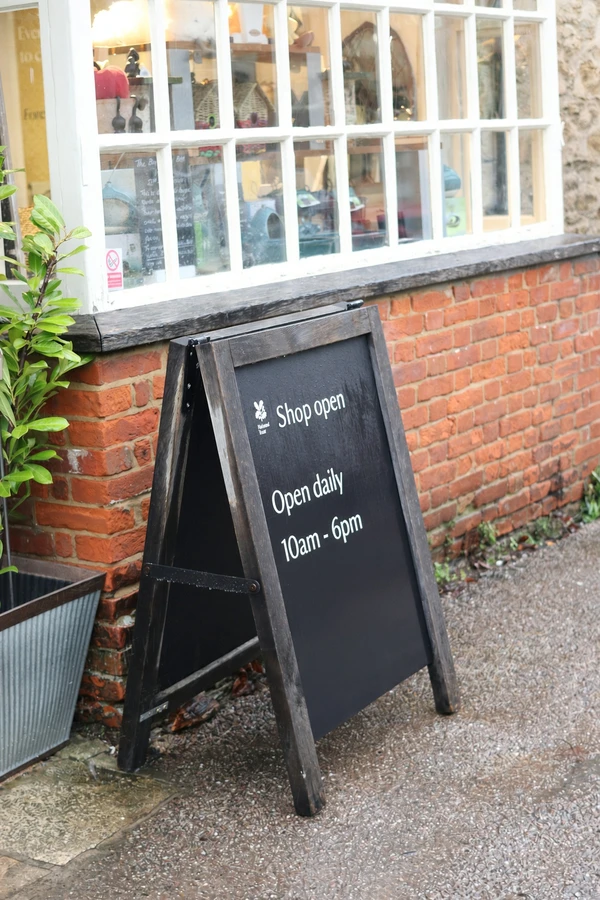
These examples focus on one short piece of text: a discount, closing time, or price. The original image supplies the reference for the letter shapes, color, placement, and angle.
Start with a clear image and a small, specific change so you can judge the result against the original.
Where it can struggle
Tiny lettering, dense paragraphs, long replacements, and curved or strongly distorted surfaces can be harder to preserve. A result may change spacing or redraw nearby detail.
Language and lettering style can affect results too. These examples of Latin lettering and numbers do not establish accuracy for every script or font.
This is a visual redraw, not a font-file match or a promise that untouched areas remain pixel-identical.
A closer comparison
How to get the closest match
Start with a short replacement
Our examples each change one short piece of text. Keep the first edit focused so you can see exactly how the lettering and surrounding image respond.
Leave room for the new words
All three examples keep the replacement close to the original length. This avoids asking the edit to fit a sentence into the space of a short label.
Compare all three versions
Check the letter shapes, baseline, shadows, and nearby text. Choose the output that works for your image rather than assuming Version 1 is the best.
Questions about keeping the same font
Can it match any font?
No. AI redraws text using the image as a visual reference. It does not identify the original font or load its font file. The result can look similar, but an exact match is not guaranteed.
Will it keep the same size and color?
The edit asks AI to follow the original lettering, size, weight, color, spacing, and perspective. These details can still change. Compare the three versions against your original before choosing a download.
What happens if my new text is longer?
More characters need more space. AI may compress the letters, change spacing, wrap the text, or alter the layout. For a closer comparison, start with a replacement of similar length rather than replacing a short word with a sentence.
Can other parts of the image change?
Yes. This is generative editing, so nearby lettering, texture, lighting, or other details may be redrawn too. Use the before-and-after comparison to inspect the whole image, not only your replacement word.
Your image is the reference
See how your words fit.
Upload, change the text, then compare three versions. 1 free HD image.