You have a photo of a shop window. The sign says “70% OFF,” but the promotion has changed to 50%. You don't have the original design file. You just want to change two digits and leave the rest of the photograph alone.
That's the kind of edit generative AI makes look simple. But there are really two questions: Did it write the right text? And what happened to the rest of the image?
While creating examples for ImageTextTools, we tried this edit on a real photograph using three image-editing models. We also tried changing a shop's opening hours and a price on a chalkboard menu. The results were useful, but some of the most revealing outputs were the ones we couldn't use.
This is a small, practical exploration, not a model leaderboard. The images were generated while making product examples, not under a comprehensive benchmark protocol. We note the differences between attempts and how results were selected so you can see what these examples do—and don't—show.
The first task: change 70% to 50%
We started with a photograph of a red sale sign in a shop window. The request was to replace “70%” with “50%,” match the original lettering and perspective, and keep the other text and image content unchanged.
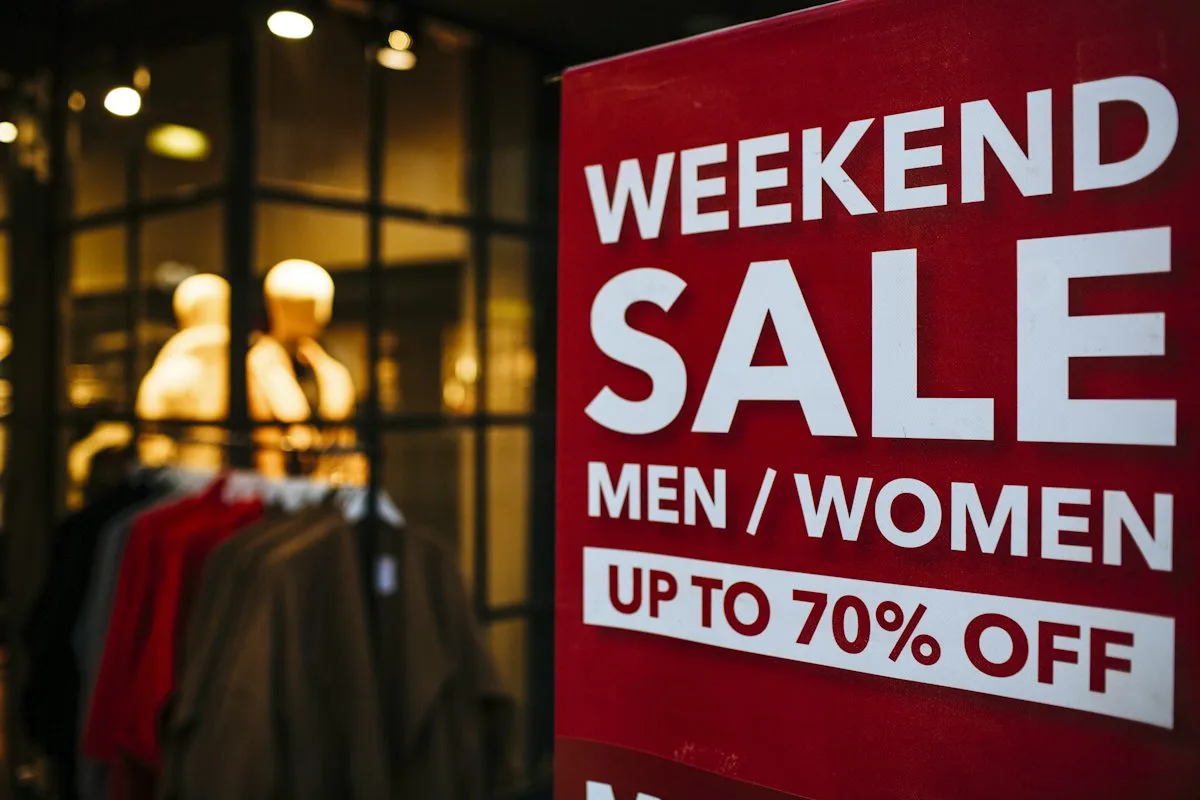
Original photograph by Markus Spiske on Unsplash, used under the Unsplash License. The following images are AI-edited versions.
We sent the same image and instruction to Grok Imagine Image 2.0, Nano Banana 2.1, and Qwen 2.1 through Kie.ai. The models had their own API parameters and output dimensions, so even the initial calls were not perfectly identical conditions.
We asked each model to make the text change while following the original style and preserving the rest of the image. That instruction expresses the goal; it doesn't guarantee that every pixel outside the text stays untouched.
Grok: the requested number changed
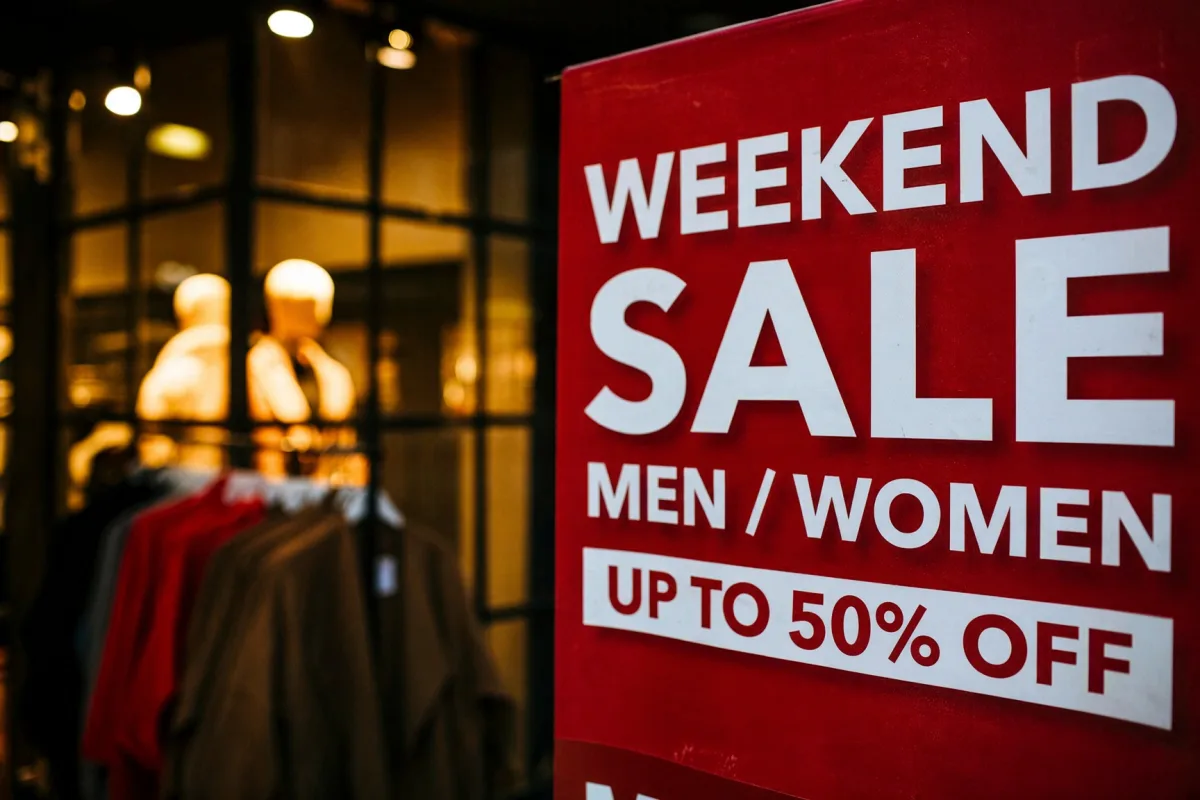
The bottom line reads “UP TO 50% OFF,” and the large “SALE” remains in place. The sign and shop are still recognizable, but compare the letter shapes and the red surface with the original: the edit is a new rendering, not a simple replacement of two character shapes.
Nano Banana: another usable version, with different details
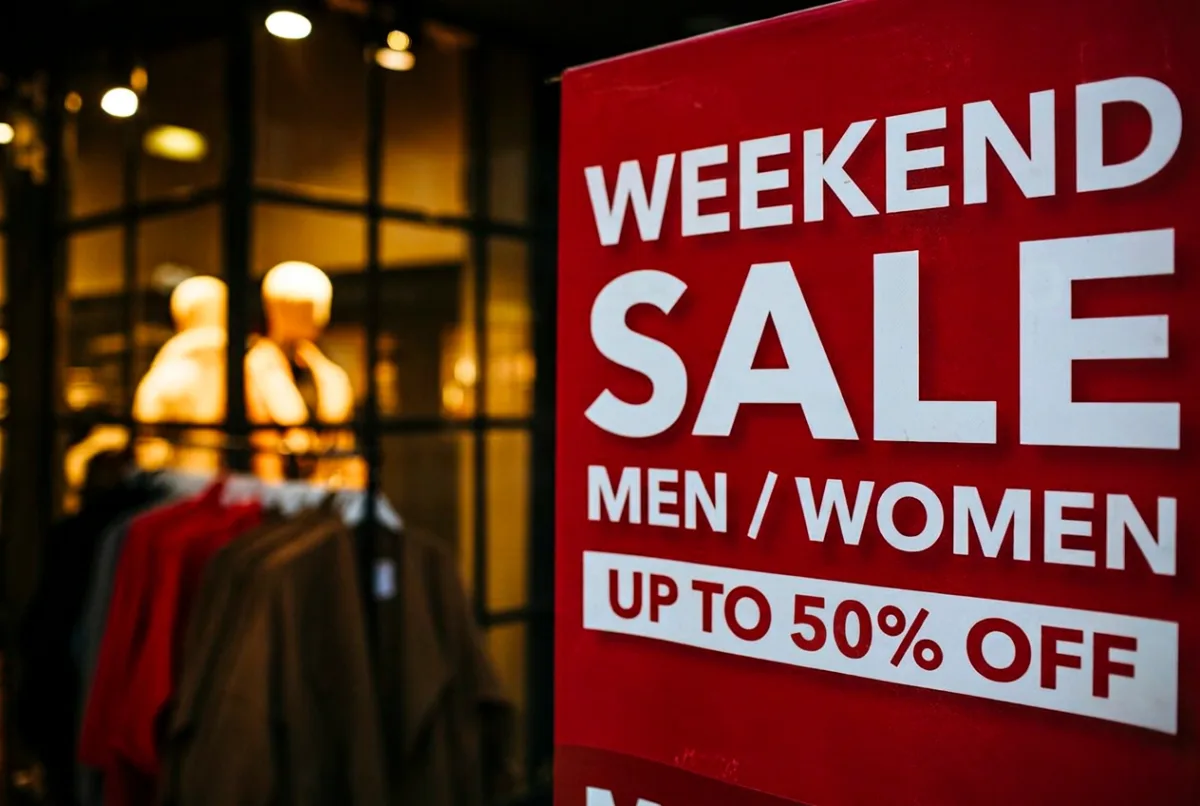
This output also changes the discount while keeping “SALE.” Side by side, the two results differ in lettering, spacing, and surface detail. Which looks closer is partly a visual judgment; the useful point is that a correct number does not mean the surrounding image is identical.
Qwen: a plausible image with the wrong text changed
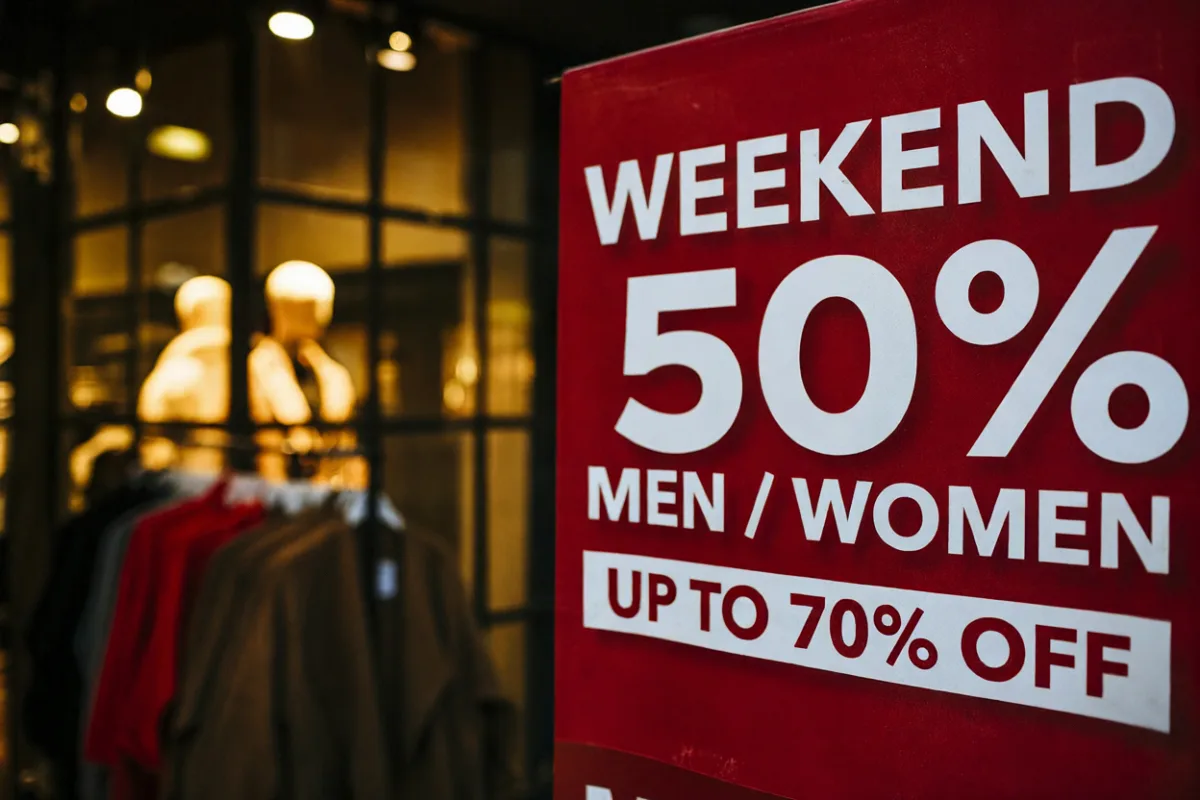
The first Qwen result changed the large “SALE” to “50%,” while the original “70%” remained on the bottom line. A second attempt with the same replacement instruction made the same kind of mistake. At a glance, the result looks like a sale sign; on closer inspection, it fails the actual task.
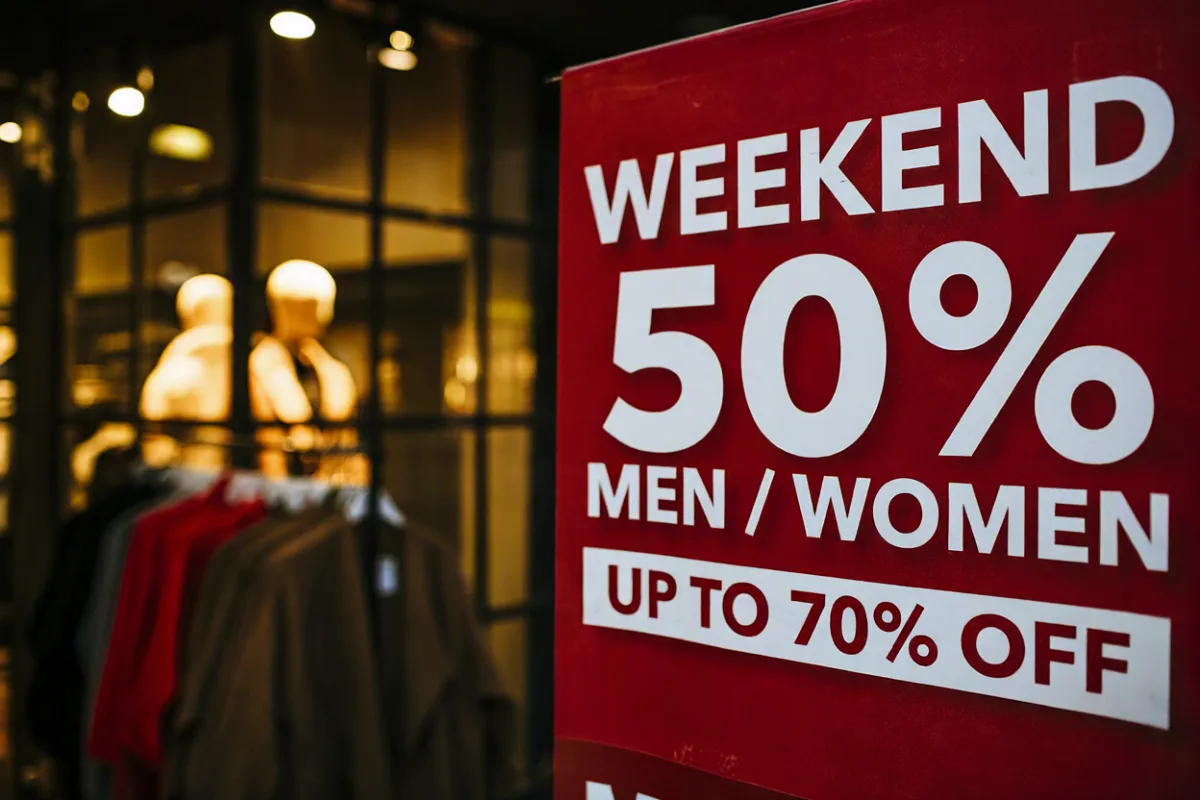
We then adjusted the instruction to give the model more context about the target text. That output kept “SALE” and changed the intended line:
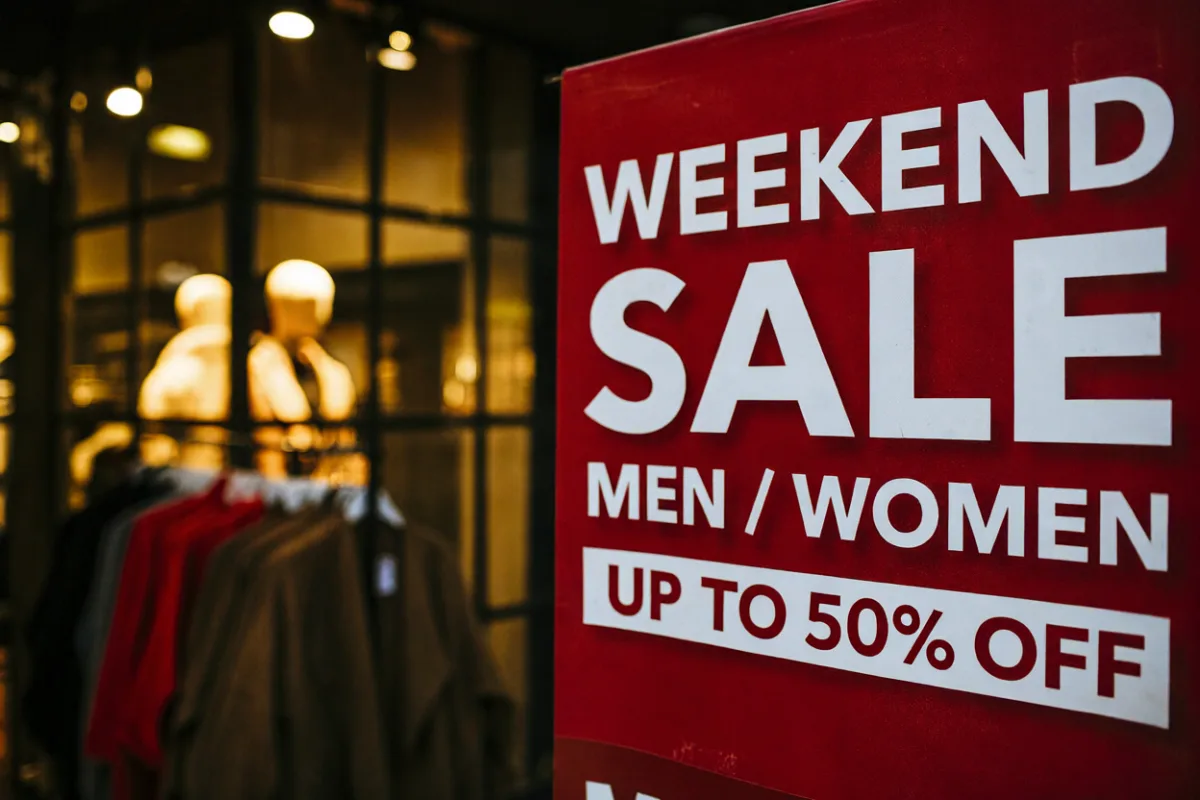
This is an example of additional context helping in this particular case, not proof that it always works. The final Qwen image used a different instruction from the Grok and Nano images above, so those three selected images should not be treated as a controlled ranking.
Two more real-world edits
A shop sign: changing the closing time
For the next photo, we asked Grok to change “10am - 4pm” to “10am - 6pm.” The first request returned a provider error without an image; a separately approved retry produced the result below.
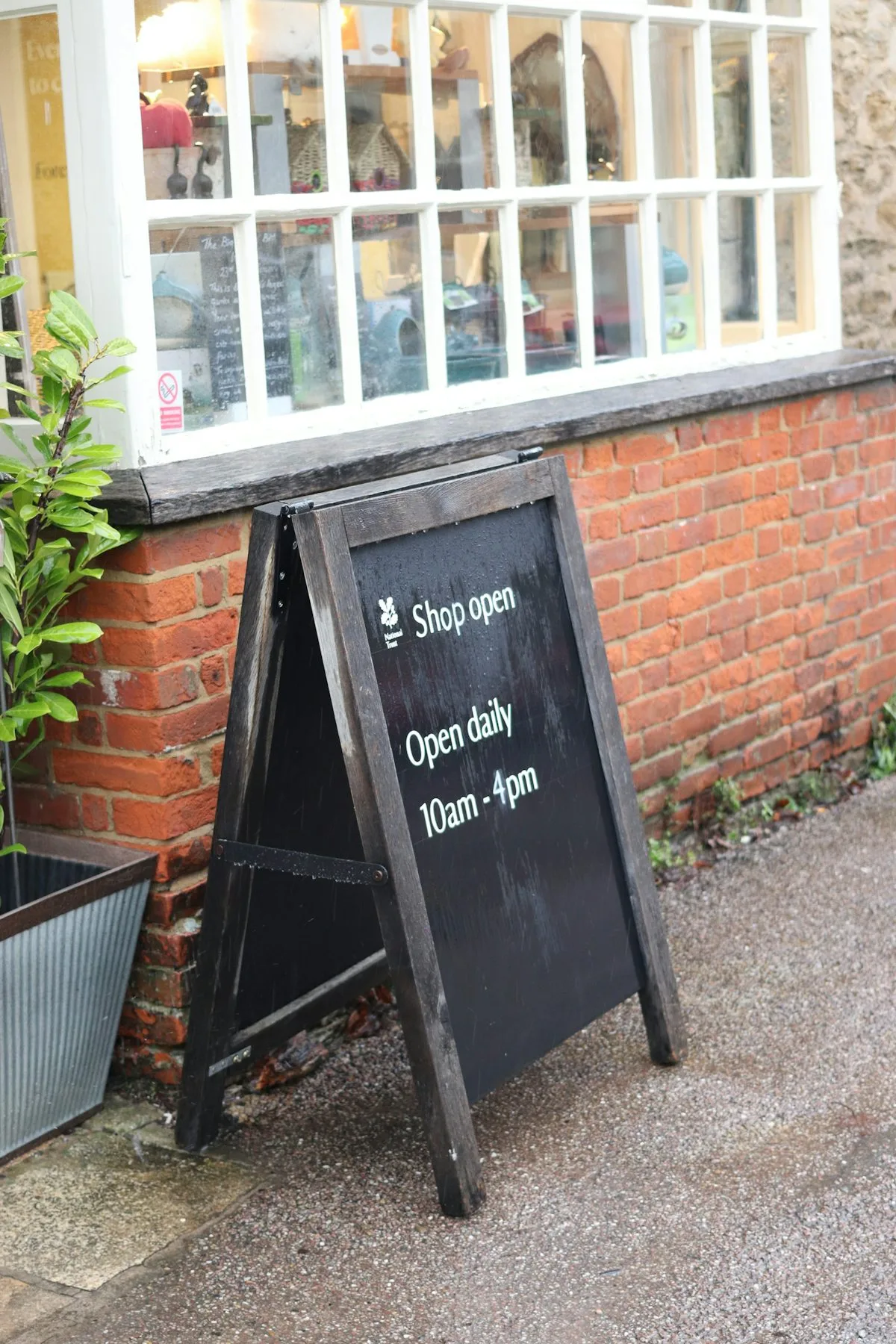
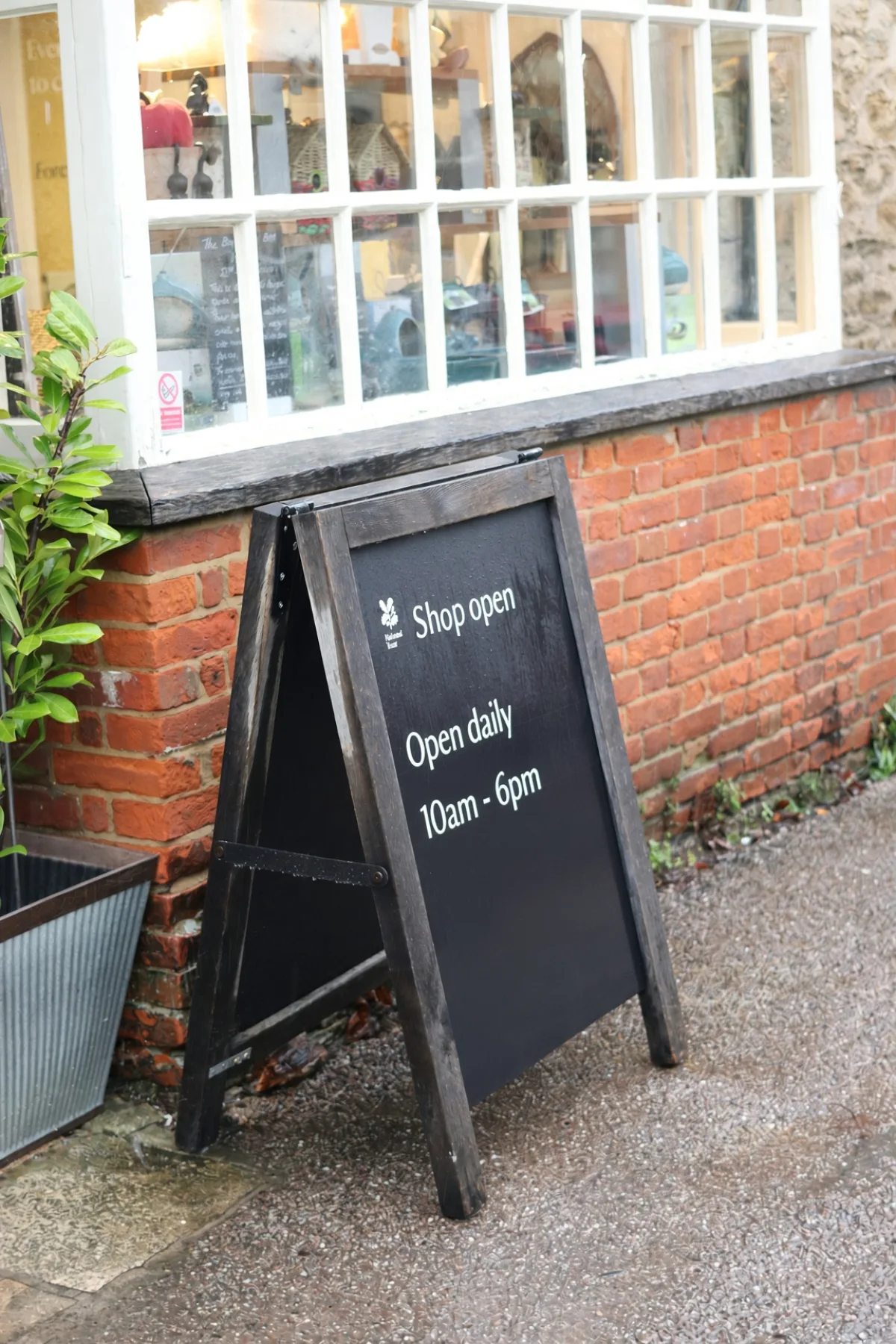
Original photograph by T (@tanyabarrow) on Unsplash, used under the Unsplash License. The second image is AI-edited.
The new closing time is readable, and the sign retains its angled position in the scene. Look beyond the number, though: the wood, brick, and window details have been redrawn. If exact preservation of the shopfront matters, that difference matters too.
A chalkboard menu: checking one small digit
The last request changed a menu price from “2,5” to “2,8.” The first Grok output wrote “2,6” instead. A later Nano output wrote the requested “2,8.” These were different models and calls, with different output aspect-ratio settings; this is an example of what happened, not a head-to-head test.
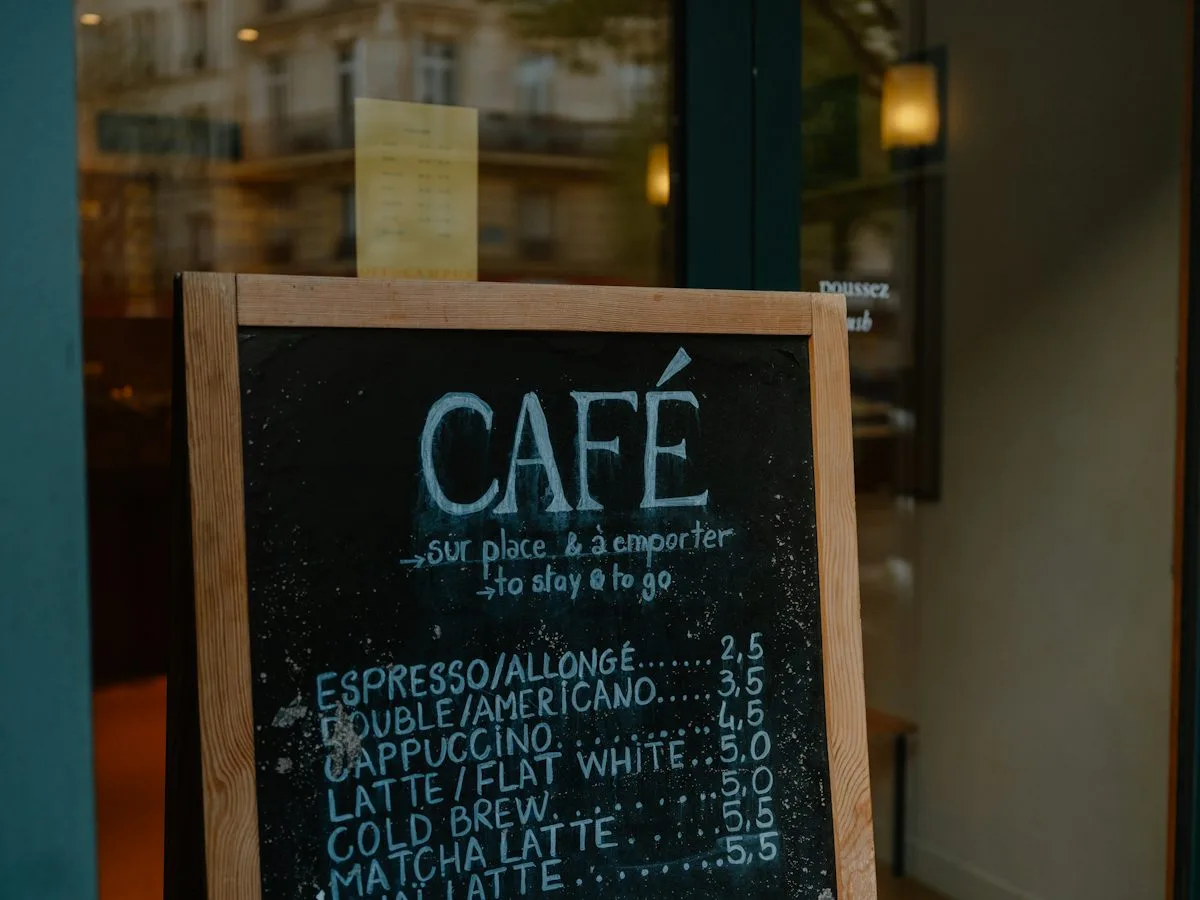
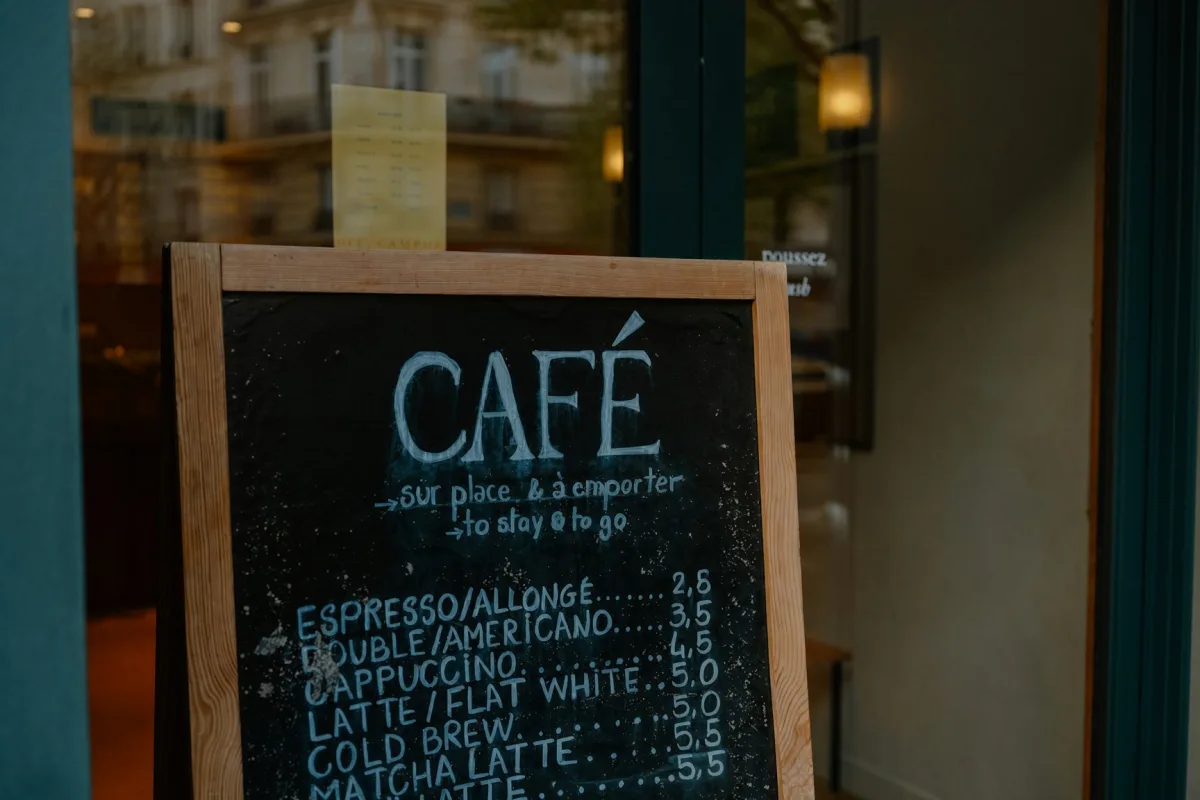
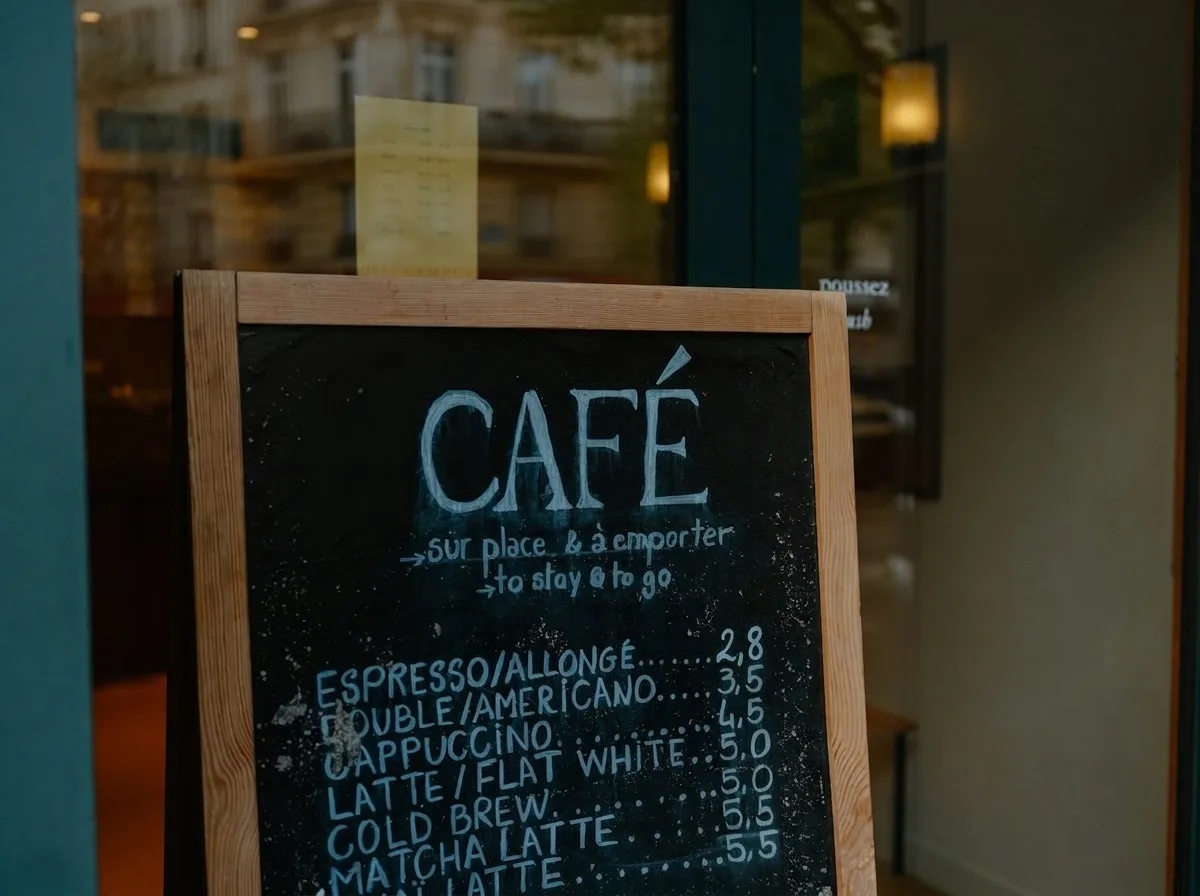
Original photograph by Annie Spratt on Unsplash, used under the Unsplash License. The second and third images are AI-edited.
The successful version retains the overall chalkboard appearance, while fine strokes and chalk texture differ. The incorrect version is a good reminder to zoom in: a small digit can be easy to miss when the whole image looks convincing.
What to check before using an AI text edit
These examples suggest a short review routine:
- Read the replacement literally. Check every digit, punctuation mark, and character against what you requested.
- Check the other words. The model might change the wrong text or alter text you wanted to keep, as it did with “SALE.”
- Compare the lettering at full size. Look at shape, weight, color, spacing, and perspective. A similar appearance is not an exact font match.
- Inspect the surroundings. Texture, nearby objects, and backgrounds may be regenerated even when the instruction says to keep them unchanged.
- If the target is ambiguous, try more context. In our sale example, specifying the complete line helped. Check the new output just as carefully; a longer instruction can also change the result in unexpected ways.
For a quick visual update, a generated result may be exactly what you need. For an exact typeface, editable text layers, or an image where other details must remain unchanged, a manual workflow with the original design assets may be a better fit.
Why we built a comparison into the workflow
We built ImageTextTools to make this kind of edit easier to try: upload an image, change detected text, and compare generated versions with the original. Because models can make mistakes or produce different results, each edit generates three versions for you to compare and choose from. The examples in this article come from our own product work; we selected the five successful outputs for the site and have included the three incorrect image outputs here as well.
The tool uses the image as a visual reference. It does not identify or load the original font file, and generated results can change other details. If you try it, take a moment to check both the new text and the rest of the image before downloading.